Recording Waypoints
Where This Fits
Recording waypoints is the first step in the Path Planning & Control side of the pipeline. The particle filter provides localization — now you use that localized pose to record a path for the car to follow.
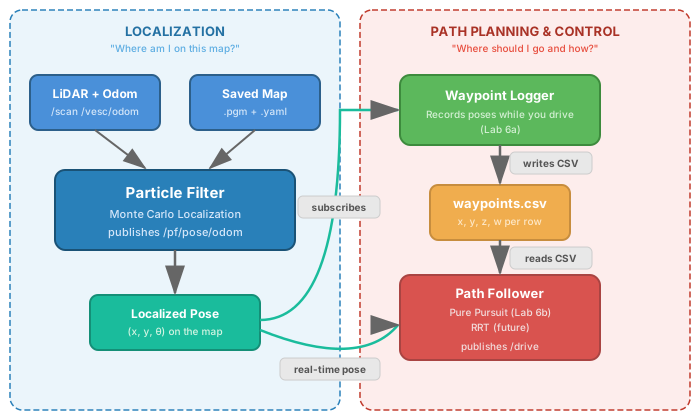
Pure Pursuit follows a pre-recorded path. Before the car can drive autonomously, you must drive it around the track manually once to record the waypoints.
How It Works
While the particle filter is running and the car is localized, a waypoint logger node subscribes to /pf/pose/odom and saves each pose to a CSV file as you drive. The pure pursuit node later reads this CSV and follows the path.
Prerequisites
bringuprunning (Terminal 1)ros2 launch particle_filter localize_launch.pyrunning (Terminal 2)RViz2 running with the particle filter config (Terminal 3):
rviz2 -d ~/f1tenth_ws/src/f1tenth_system/particle_filter/rviz/pf.rviz
Initial pose set via 2D Pose Estimate — car must be localized before recording
The particle filter is what gives the robot its position on the map. Without it, the robot has no way to know where it is relative to the map, and the recorded waypoints would be meaningless. Make sure the particle filter is running and the car is localized (2D Pose Estimate set in RViz2) before you start recording.
Steps
1️⃣ Start the Waypoint Logger (Terminal 3)
Note
The pure_pursuit package and waypoint_logger node do not come pre-installed. You must build them yourself first — see Lab 6 - Waypoint Logger for Pure Pursuit in the Weber Assignments for step-by-step instructions on creating the package and writing the node.
cd ~/f1tenth_ws
source /opt/ros/humble/setup.bash
source install/setup.bash
ros2 run pure_pursuit waypoint_logger
The logger will begin recording poses as the car moves.
2️⃣ Drive the Full Track
Using the PlayStation controller, drive the car around the complete track at a moderate speed. The logger saves a waypoint at each pose published by the particle filter.
Tips for a good recording:
Drive at the speed you want the car to autonomously follow
Cover the entire track — drive all sections at least once
Close the loop — finish at approximately the same location you started
Avoid sharp jerks or corrections, as these will be recorded into the path
3️⃣ Stop the Logger
When you have completed the full lap and returned near the start position, press Ctrl+C to stop the logger.
The waypoints are saved to:
~/f1tenth_ws/src/pure_pursuit/maps/waypoints.csv
4️⃣ Verify the Recording
Check that the file was created and contains data:
wc -l ~/f1tenth_ws/src/pure_pursuit/maps/waypoints.csv
A full lap should produce several hundred waypoints. If the count is very low, the car may not have been localized during recording — re-run with the particle filter active and initial pose set.
Note
Once recorded, the waypoints file can be reused each session. You only need to re-record if the map changes or the track layout changes.